Keep your server URL, username and password, M3U link or portal details ready.
IPTV INSTALLATION GUIDES
Set Up IPTV on Your Device in a Few Clear Steps
Choose your device, install a compatible IPTV player and follow the setup path that matches the login details you received. These IPTV installation guides are designed for beginners and experienced users in Canada.
Before you start
01
Your access details
02
A compatible player
03
A stable connection
Install a player that works with your device and the login format you received.
Use strong Wi-Fi or Ethernet where practical for the most consistent playback.
Choose your platform
Select Your Device
Start with the device you actually use. Each card opens the matching installation section below.
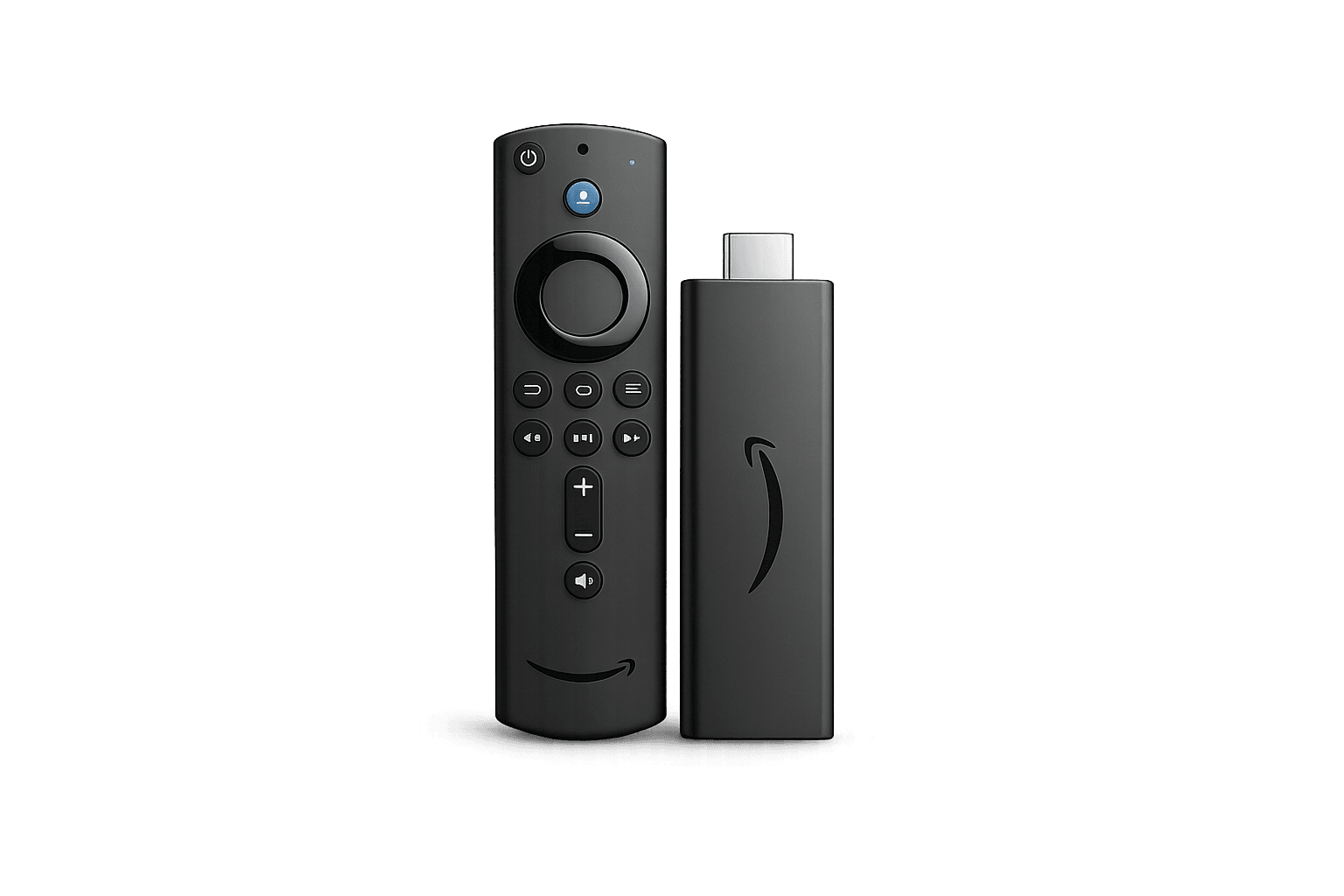
Fire TV / Firestick
Firestick & Fire TV devices
View Setup →
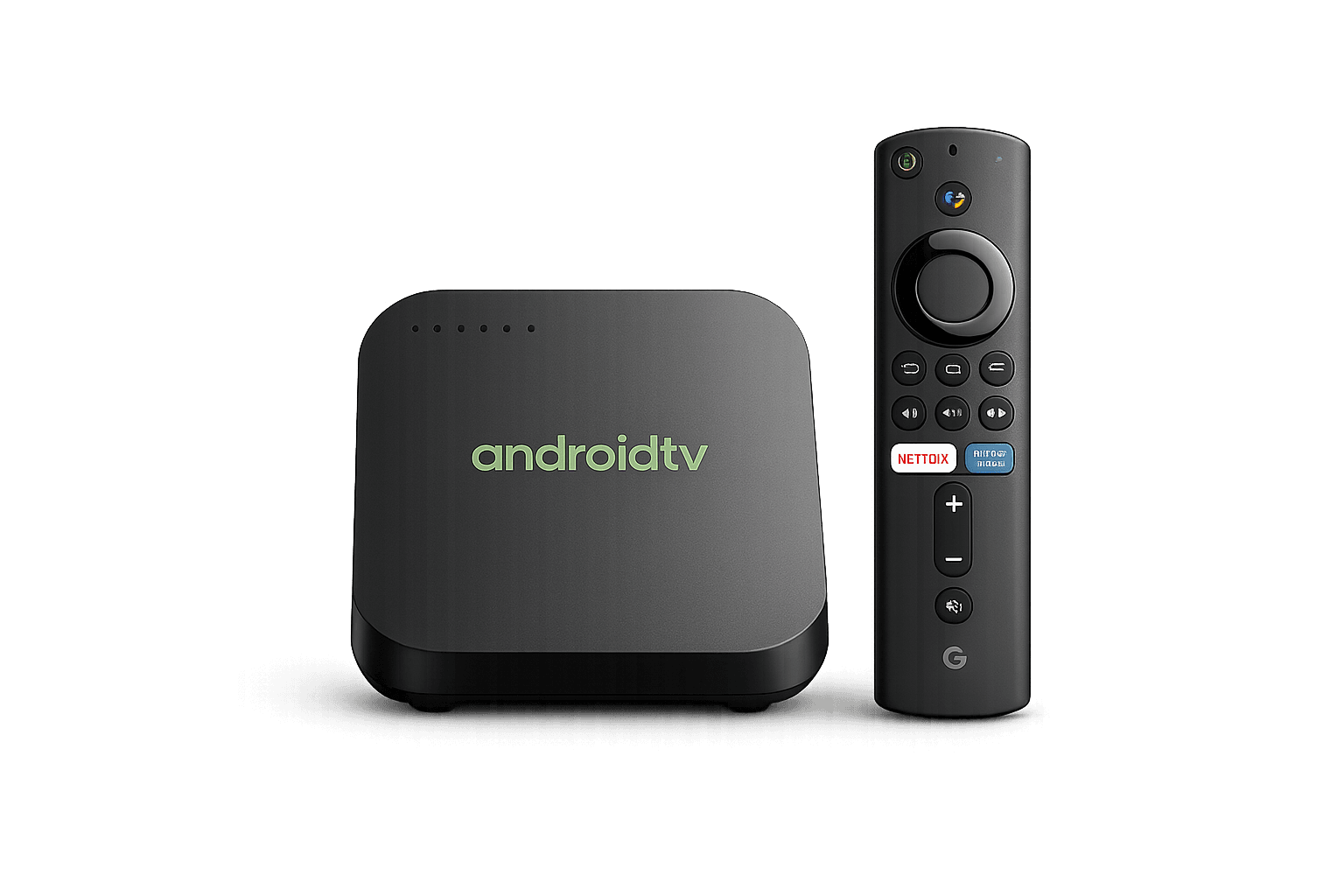
Android TV / Box
Android TV, boxes & compatible Google TV
View Setup →
Samsung Smart TV
Samsung TV setup guide
View Setup →
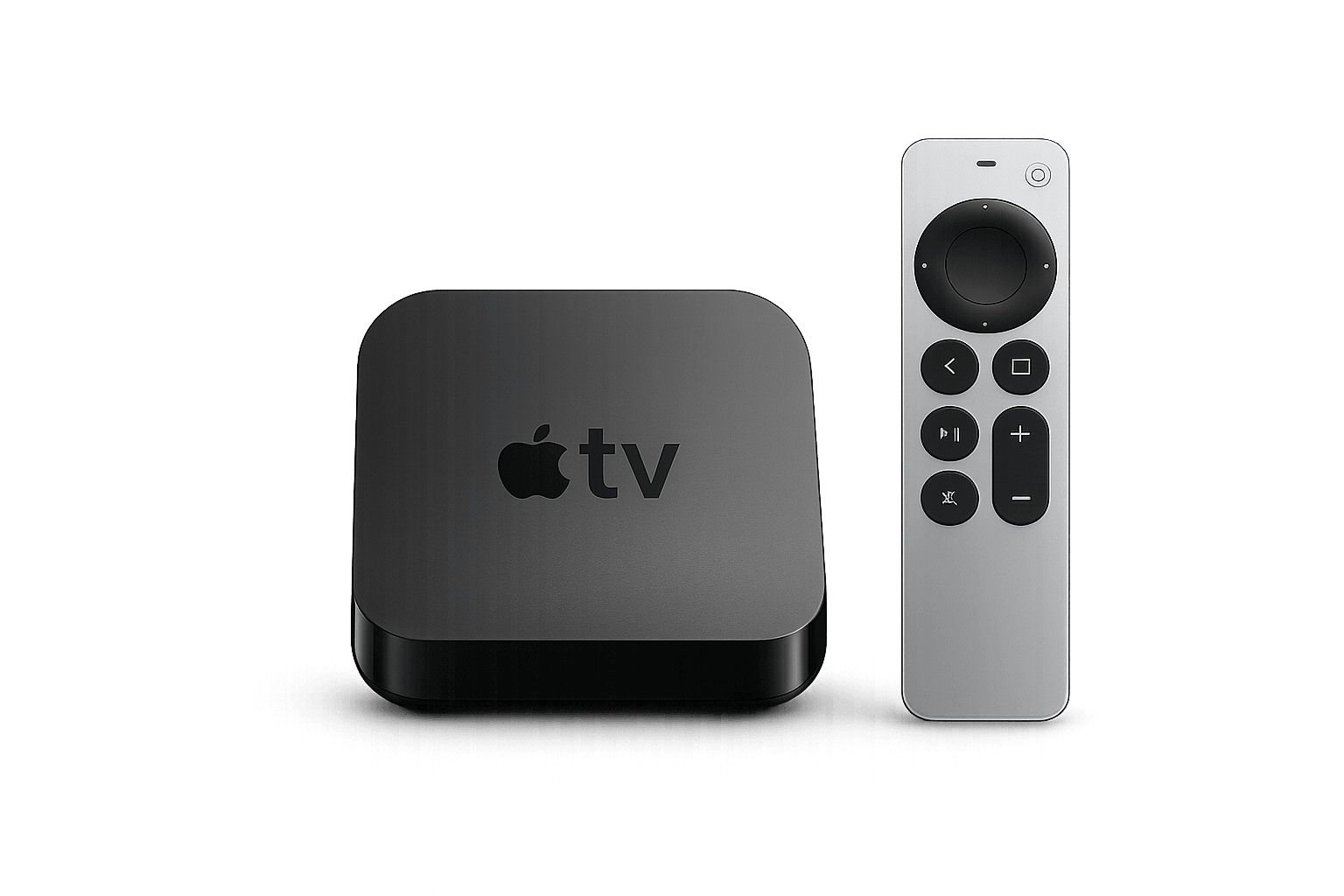
Apple / iOS
Apple TV, iPhone & iPad
View Setup →
Windows / Mac
Desktop & laptop computers
View Setup →
Android Phone
Phones & tablets
View Setup →
Formuler
Formuler boxes & MYTVOnline
View Setup →

BuzzTV
BuzzTV boxes
View Setup →
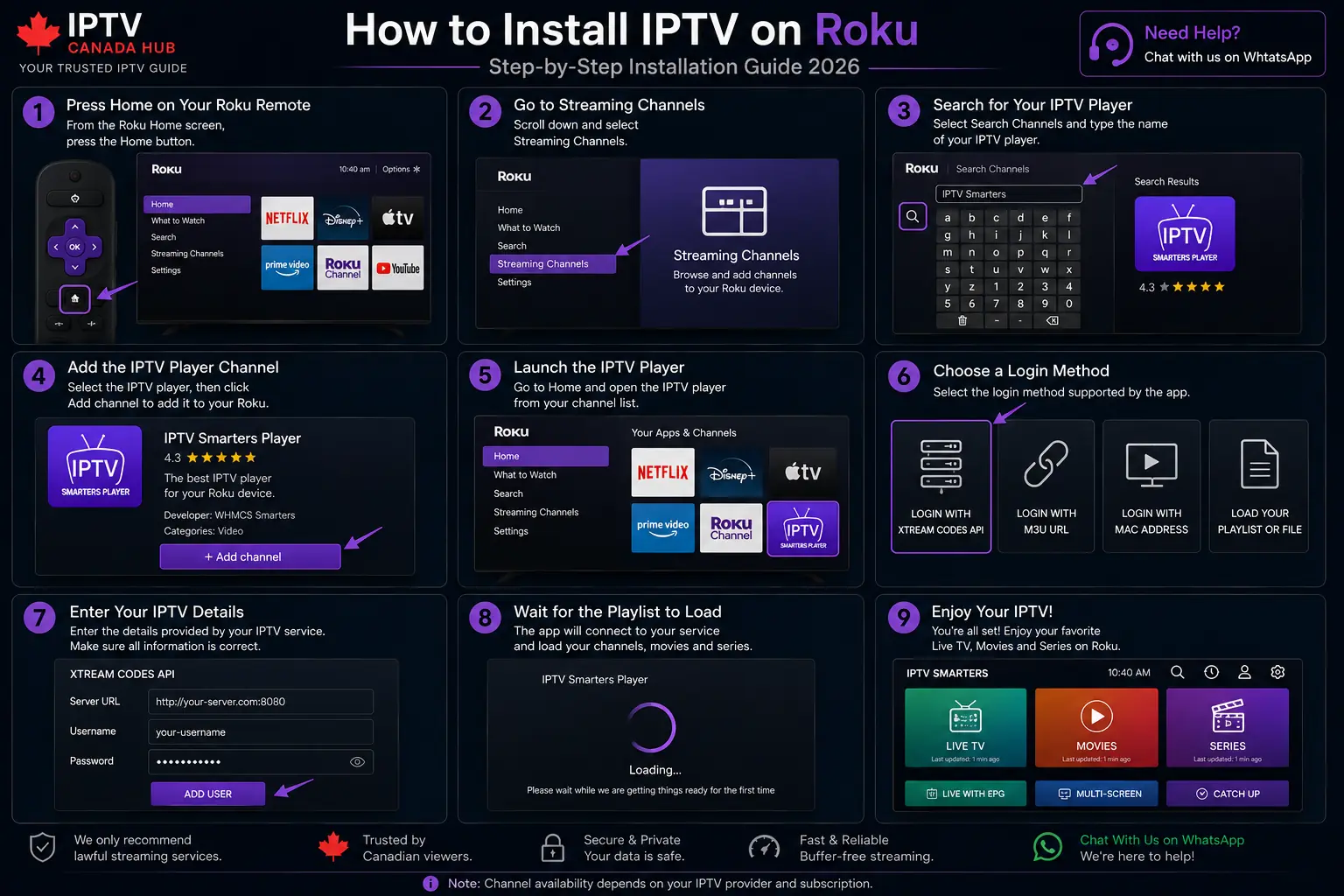
Roku
Roku streaming devices
View Setup →
Know your login type
Which Setup Details Did You Receive?
Before following any IPTV installation guide, identify the format of your access details. The player you choose must support that format.
Server URL + username + password.
A playlist URL, sometimes with a separate EPG URL.
Portal URL linked to a compatible device MAC address.
Player Choice Notice
The IPTV player shown in each installation guide is only an example. You are not required to use the same app. You are free to choose any compatible IPTV player available for your device, as long as it supports the login method provided to you, such as Xtream Codes or M3U.
Compare compatible IPTV players →
Step-by-step setup
IPTV Installation Guides by Device
Use the guide that matches your device. App names and menus can differ, but the overall setup flow is similar on most platforms.
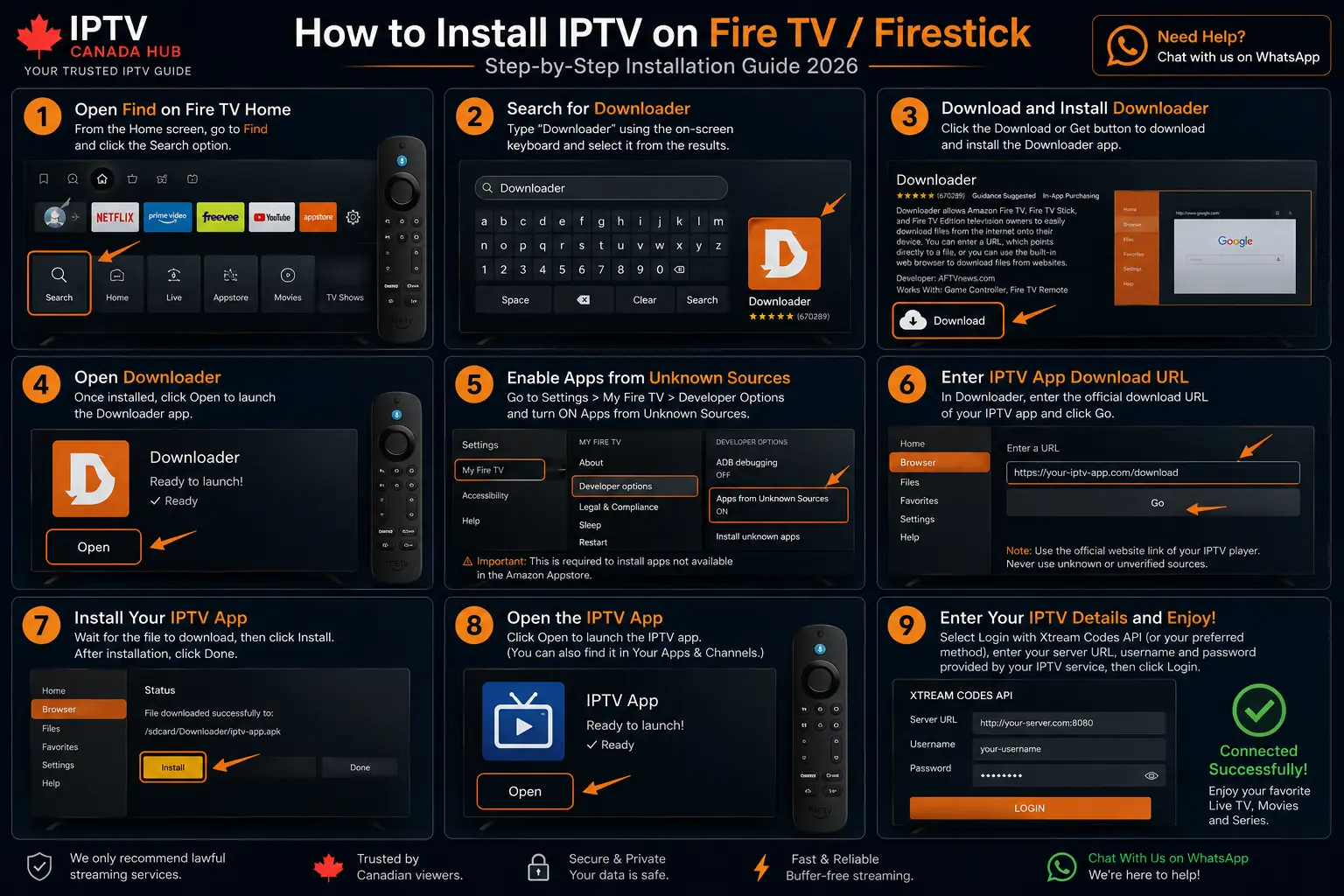
Fire TV / Firestick
Set Up IPTV on Fire TV
Follow the illustrated setup path below. App names and menu labels can vary by device generation and player.
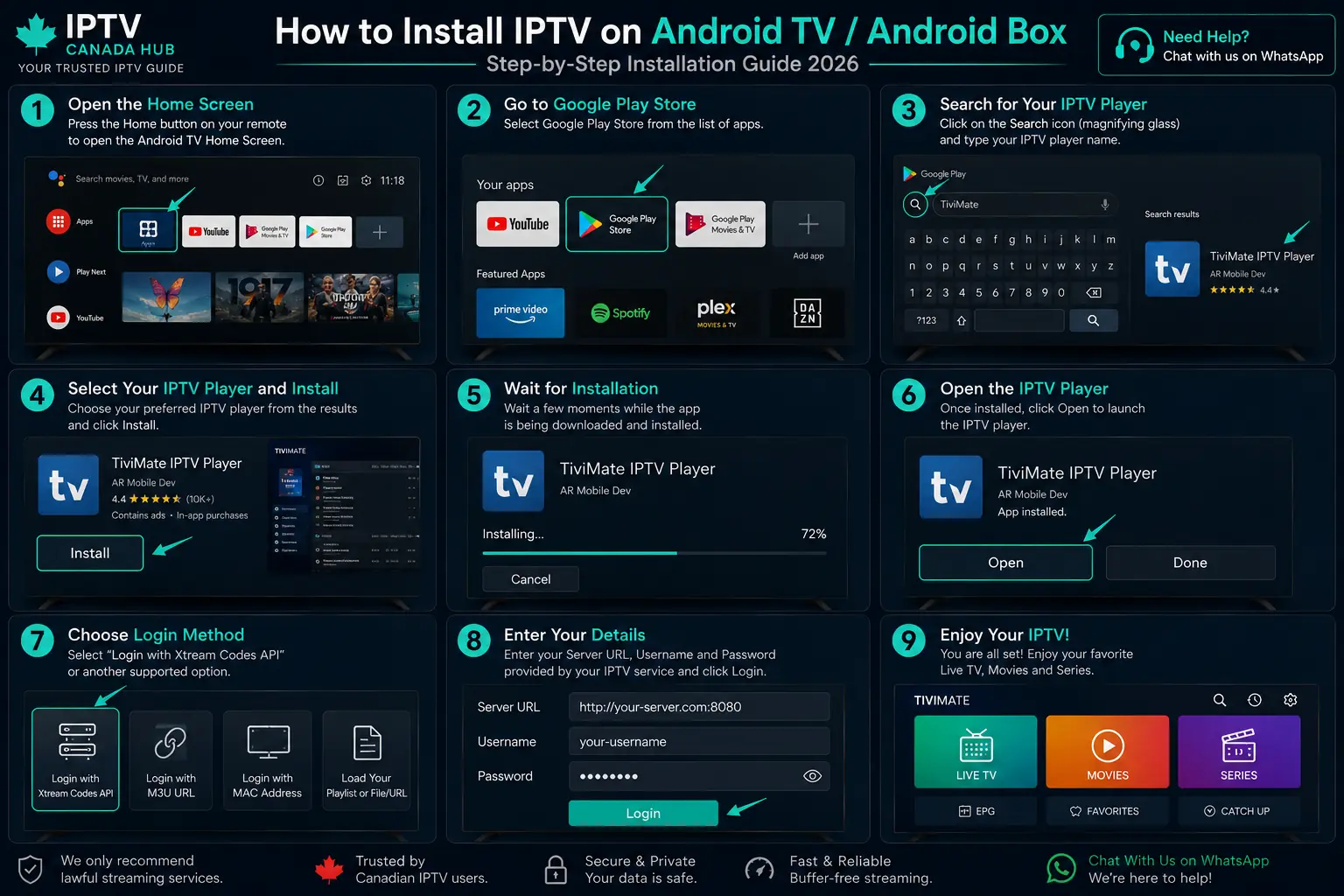
Android TV / Box
Set Up IPTV on Android TV or Google TV
Use any compatible player available for your Android-based device and match the app to the login format you received.
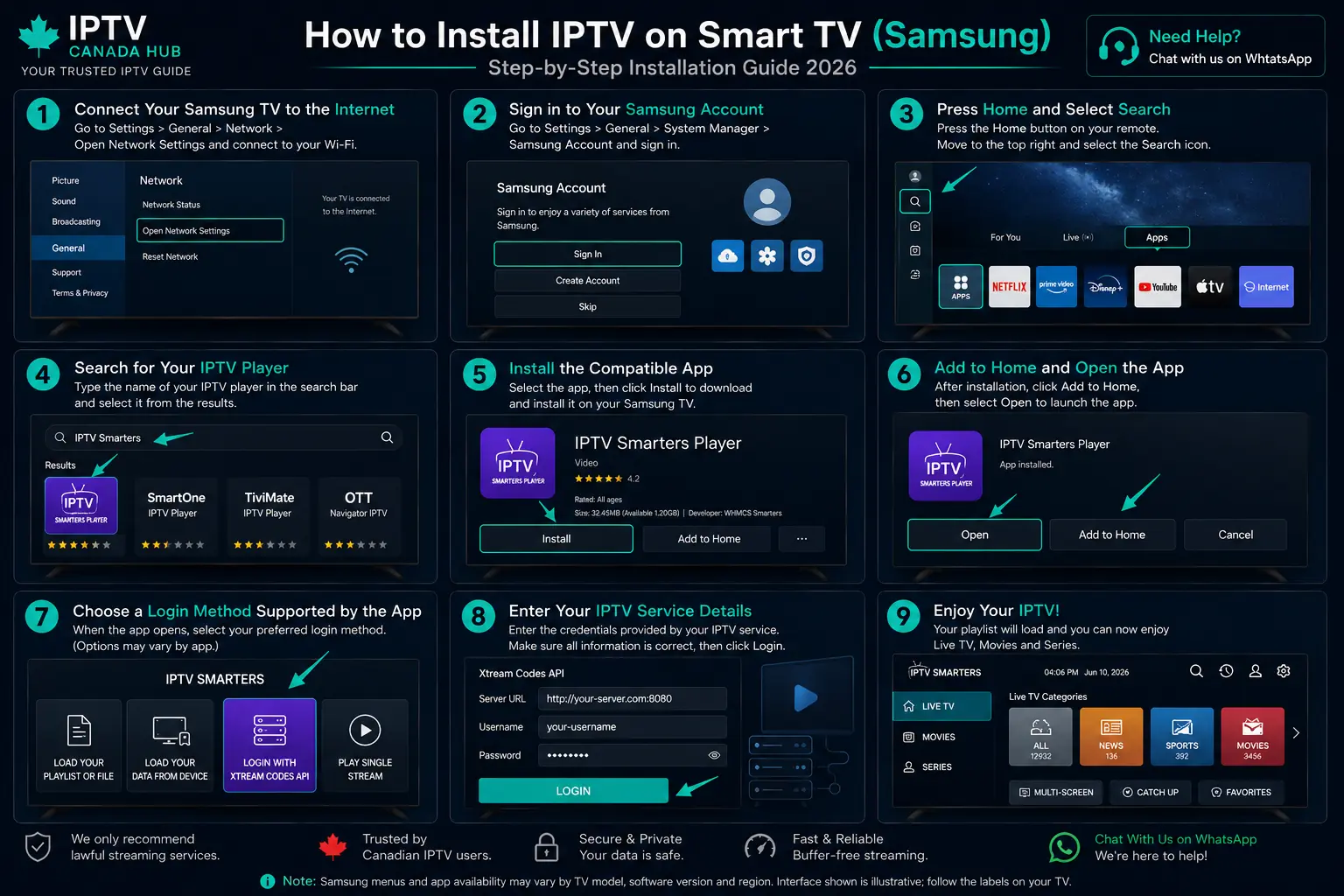
Samsung Smart TV
Set Up IPTV on Samsung Smart TV
App availability and menu labels can vary by Samsung TV model, software version and region.
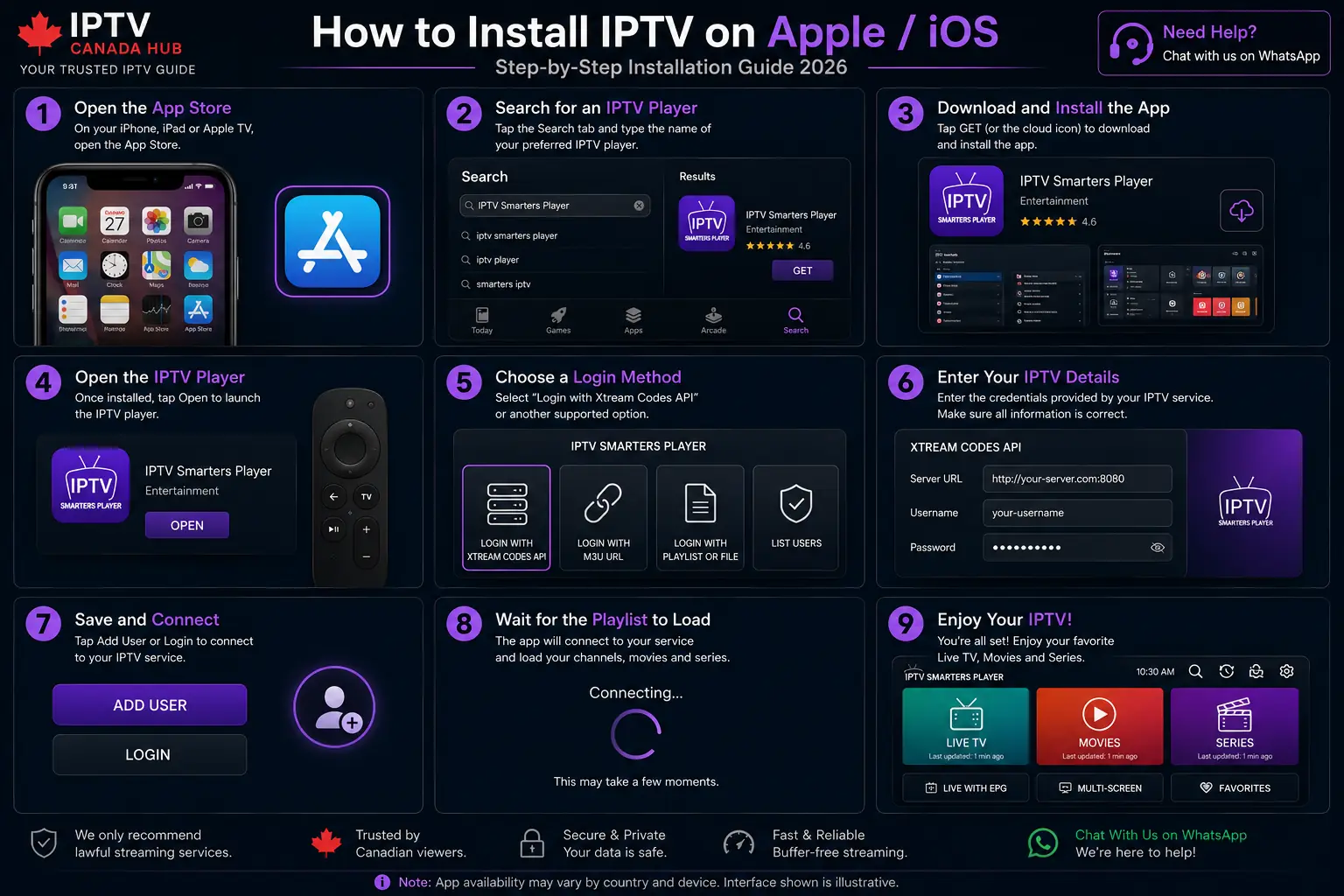
Apple TV / iPhone / iPad
Set Up IPTV on Apple and iOS Devices
Choose a compatible player from the App Store and use the login option supported by that app.
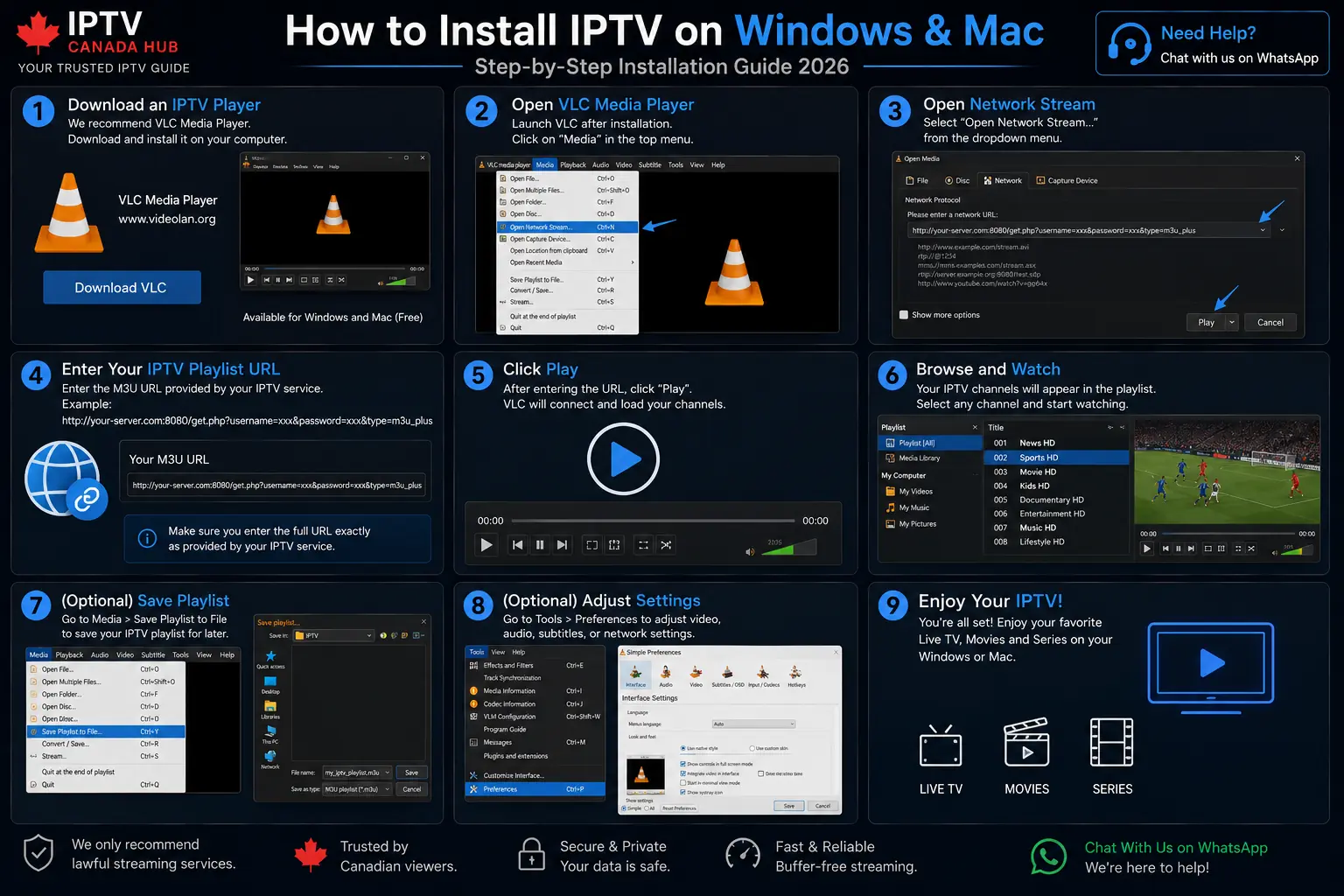
Windows / Mac
Set Up IPTV on Windows or Mac
Desktop users can use a compatible IPTV player or media player that supports the playlist or login format they received.
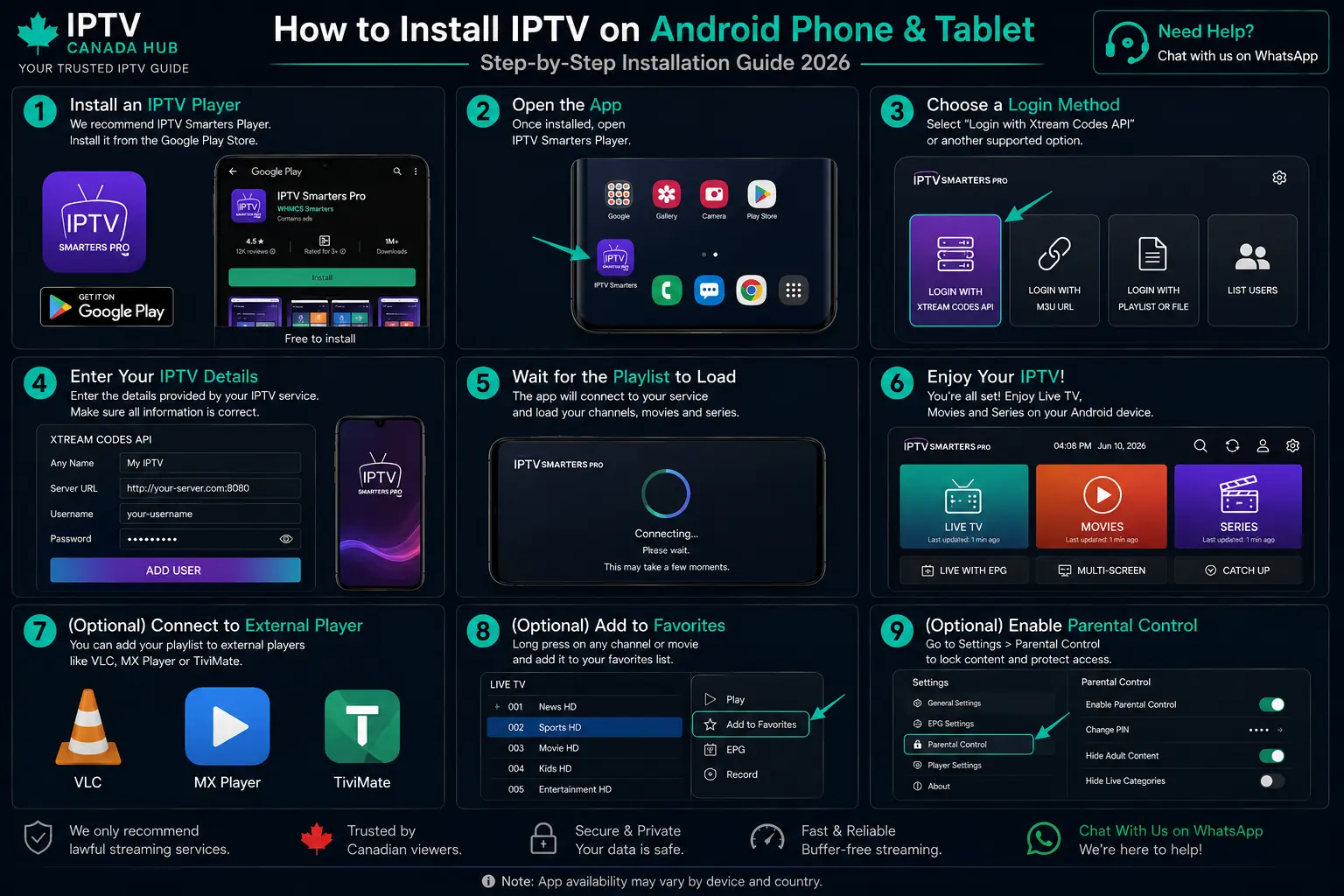
Android Phone / Tablet
Set Up IPTV on Android Mobile
Install a compatible player from Google Play where available and add the login details supplied with your service.
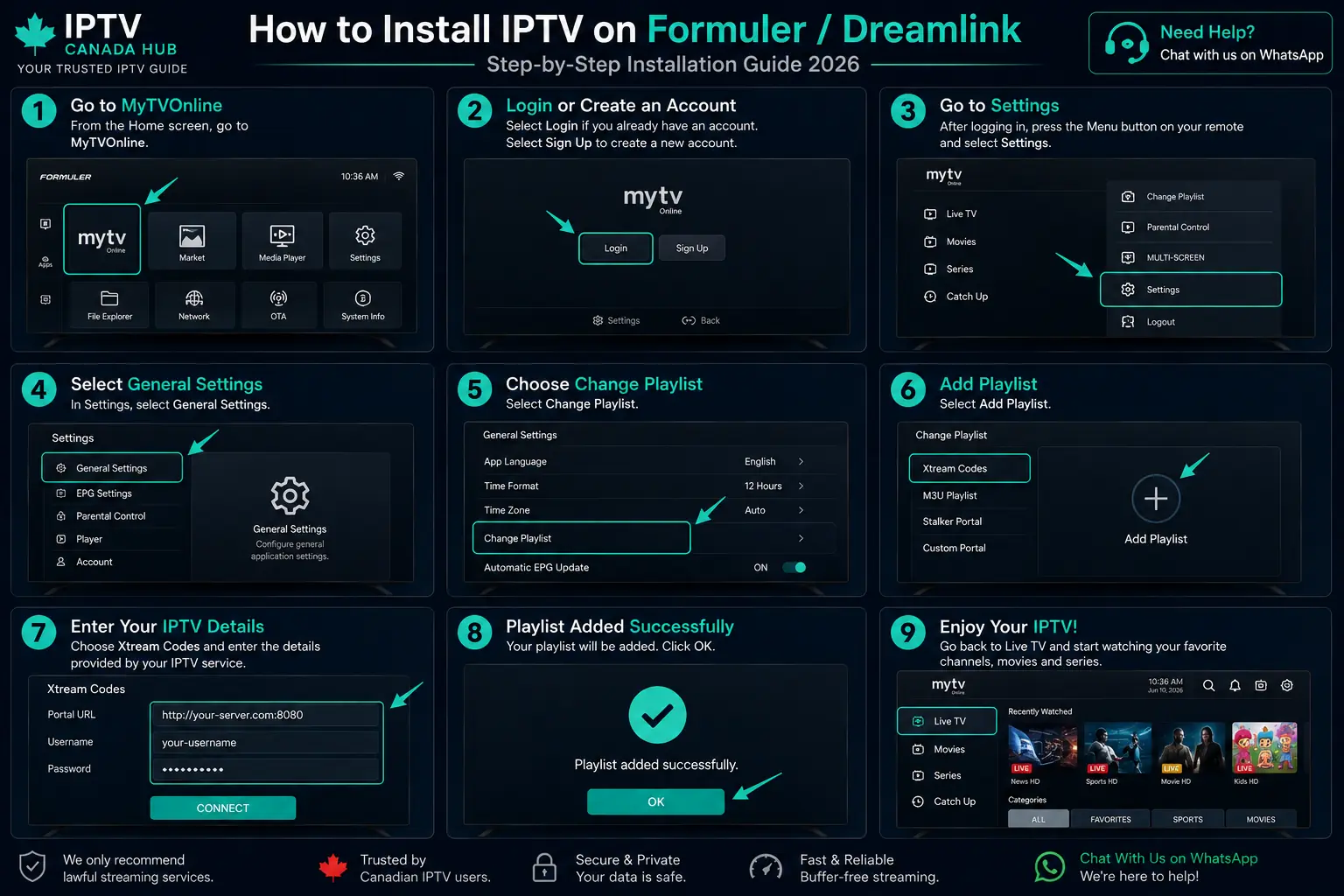
Formuler / MYTVOnline
Set Up IPTV on Formuler
Formuler devices commonly use MYTVOnline. Exact interface options can vary by model and software version.
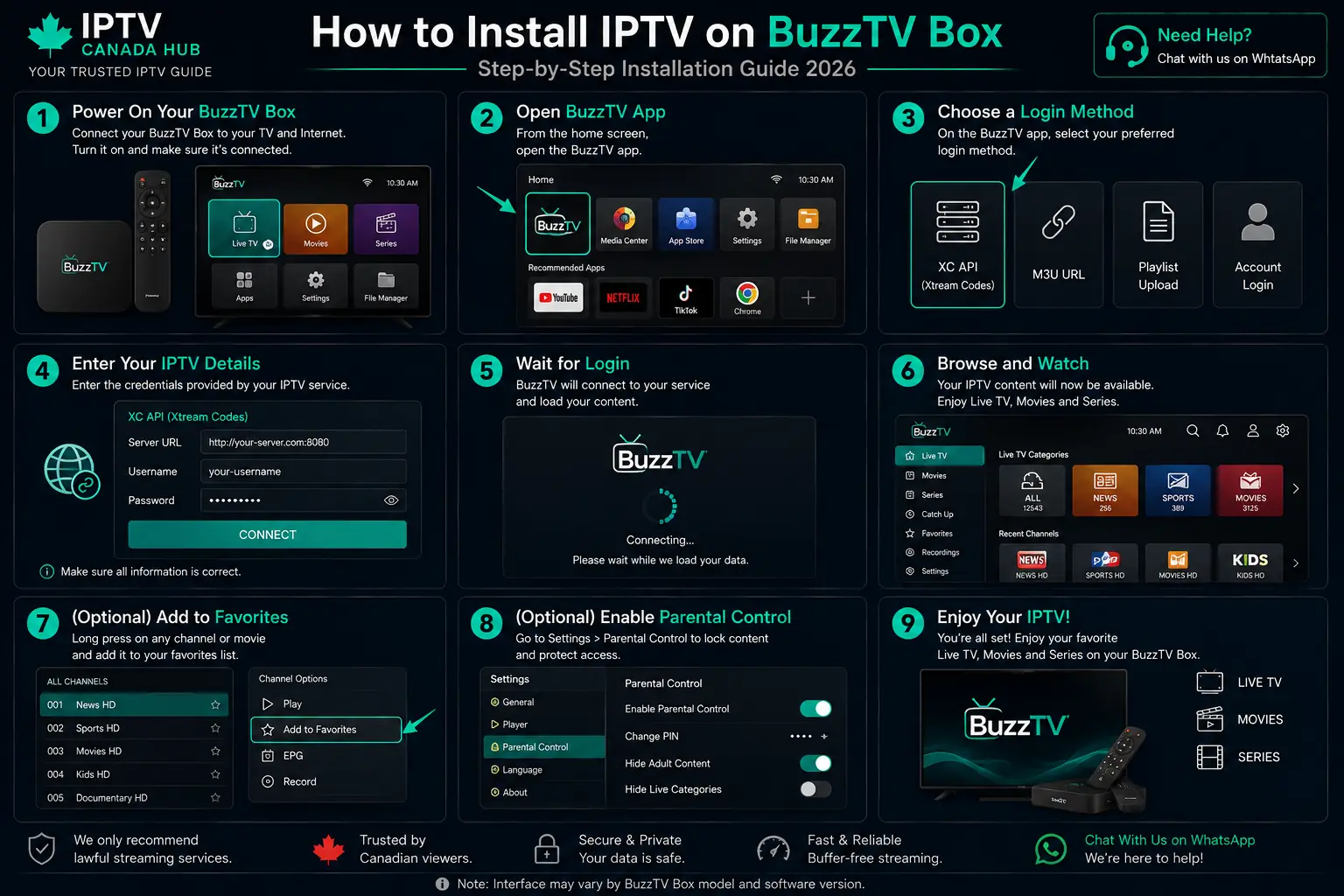
BuzzTV
Set Up IPTV on BuzzTV
BuzzTV models can include different built-in IPTV interfaces, so menu labels may vary slightly by device and software version.
Roku
Set Up IPTV on Roku
App availability and supported login methods can vary on Roku. Use a compatible channel or player available for your device and region.
Setup help
IPTV Setup Troubleshooting
If installation does not work immediately, start with the setup issue you see. For broader playback or account problems, use the dedicated troubleshooting guides linked below.
Login or authorization failed
Re-enter the server URL, username and password exactly as provided. Confirm that the player supports the login format you received and check that your access is still active. For additional account and login help, visit IPTV Support Canada.
Channels load but playback buffers
If installation succeeded and channels appear, the setup itself may already be complete. Use our IPTV buffering fix guide to diagnose Wi-Fi, device, player and stream-related playback problems.
The player app is unavailable
App availability varies by platform, TV model, operating system and region. Choose another compatible player from the official app store where possible, or compare options in our IPTV apps guide.
The playlist is empty after setup
Confirm that your access is active, verify the login format and reload the playlist. If categories still do not appear, continue with our IPTV support guide.
The app is slow or unstable
Once the account has been added successfully, app performance becomes a player or device troubleshooting issue. Review compatible IPTV apps or use IPTV Support Canada for the next checks.
Internet performance affects streaming quality.
For general information about internet services and consumer protections in Canada, visit the CRTC internet services information.
Test before subscribing
Start 24-Hour Free Trial
Not Sure Your Device Is Compatible?
Install a compatible player first, then use the 24-hour trial to test your device, player and normal internet connection.
Setup questions
IPTV Installation Guides FAQ
Quick answers about devices, players, login details and setup.
How long does IPTV setup usually take?
On a compatible device, the basic process is usually short: install a player, add the supplied login details and allow the channel list to load. Actual time depends on the device and app.
Do I need a separate IPTV box?
Not necessarily. Many Smart TVs, streaming sticks, phones, tablets and computers can run compatible IPTV player apps directly.
Which IPTV player should I use?
Use a reputable compatible player available for your platform and capable of handling the login format you received.
Can I install IPTV on a Samsung Smart TV?
Yes, when a compatible player is available for your Samsung TV model and region. Check the official TV app store first.
What is the difference between Xtream Codes and M3U?
Xtream Codes typically uses a server URL, username and password. M3U uses a playlist URL and may also use a separate EPG URL.
Can I test my setup before buying a plan?
Yes. Use the 24-hour free trial to confirm device compatibility and playback before choosing a paid subscription.
CHOOSE. INSTALL. TEST.
Start with the Device You Already Own
Follow the matching IPTV installation guide, test your setup and contact support if you need help with your player or login details.