IPTV CANADA HUB · TROUBLESHOOTING · 2026
IPTV Buffering Fix Canada: Stop Freezing Step by Step
If IPTV keeps buffering, do not change every setting at once. This IPTV buffering fix Canada guide helps identify whether the problem comes from Wi-Fi, internet congestion, the streaming device, player software or the source itself.
The fastest IPTV buffering fix is to isolate the cause. Test the same stream on a wired connection, restart the device and router, and compare another channel or application before changing advanced settings.
TRY THESE FIRST
- Pause downloads and disconnect devices using heavy bandwidth.
- Restart the IPTV player and streaming device.
- Restart the modem and router, then wait until the connection is fully restored.
- Test with Ethernet or move closer to the Wi-Fi router.
- Try another channel to determine whether only one source is affected.
Why Does IPTV Keep Buffering?
A reliable IPTV buffering fix Canada checklist starts by identifying where playback breaks down. Buffering happens when the device cannot receive or decode video data quickly and consistently enough to maintain playback. A fast internet plan can still buffer when Wi-Fi is unstable, several devices are competing for bandwidth, the player is overloaded or the selected source is having problems.
The most common causes are weak Wi-Fi, network congestion, insufficient available bandwidth, an overloaded device, outdated software, corrupted application cache or a problem affecting a specific channel or server.
Network
Weak signal, congestion, latency or packet loss.
Device
Low memory, heat, limited storage or old hardware.
Application
Cache problems, outdated player or incorrect settings.
Source
A problem affecting one channel, category or service endpoint.
IPTV Buffering Fix Canada Diagnostic Checklist
Start the IPTV buffering fix Canada process with a comparison test. Change only one factor at a time and check whether playback improves. This prevents a temporary issue from being mistaken for a permanent fix.
| What you notice | Likely area | Best first test |
|---|---|---|
| Every channel buffers | Home network, device or service | Run a speed test and try Ethernet |
| Only one channel buffers | Specific source | Test two other channels |
| Buffering happens only at night | Network congestion | Compare results at a quieter time |
| One device buffers but another works | Device or application | Restart, update and clear cache |
| Wi-Fi buffers but Ethernet works | Wireless signal or interference | Improve router placement or Wi-Fi band |
1. Check the Connection on the Streaming Device
Before changing IPTV player settings, test the connection on the same device and in the same location where buffering occurs. A speed test performed on a phone beside the router may not represent the Wi-Fi performance received by a television or streaming device in another room.
Look beyond the headline download result. Wi-Fi stability, latency, packet loss, household traffic and the number of simultaneous streams can all affect playback. If the connection appears adequate but IPTV still freezes, continue through the troubleshooting steps below to isolate the cause.
For recommended HD, Full HD and 4K ranges, multi-device bandwidth and Wi-Fi versus Ethernet guidance, use our IPTV internet speed checker for Canada.
2. Restart the Player, Device, Modem and Router
Close the IPTV player completely rather than leaving it in the background. Restart the streaming device. If buffering continues across multiple applications, restart the modem and router using the manufacturer’s recommended procedure, then wait for the internet connection to return fully before testing again.
3. Use Ethernet to Separate Internet Problems From Wi-Fi Problems
An Ethernet test is one of the most useful troubleshooting steps. If buffering stops with a wired connection, the internet service may be adequate and the problem is more likely related to Wi-Fi coverage, interference or router placement.
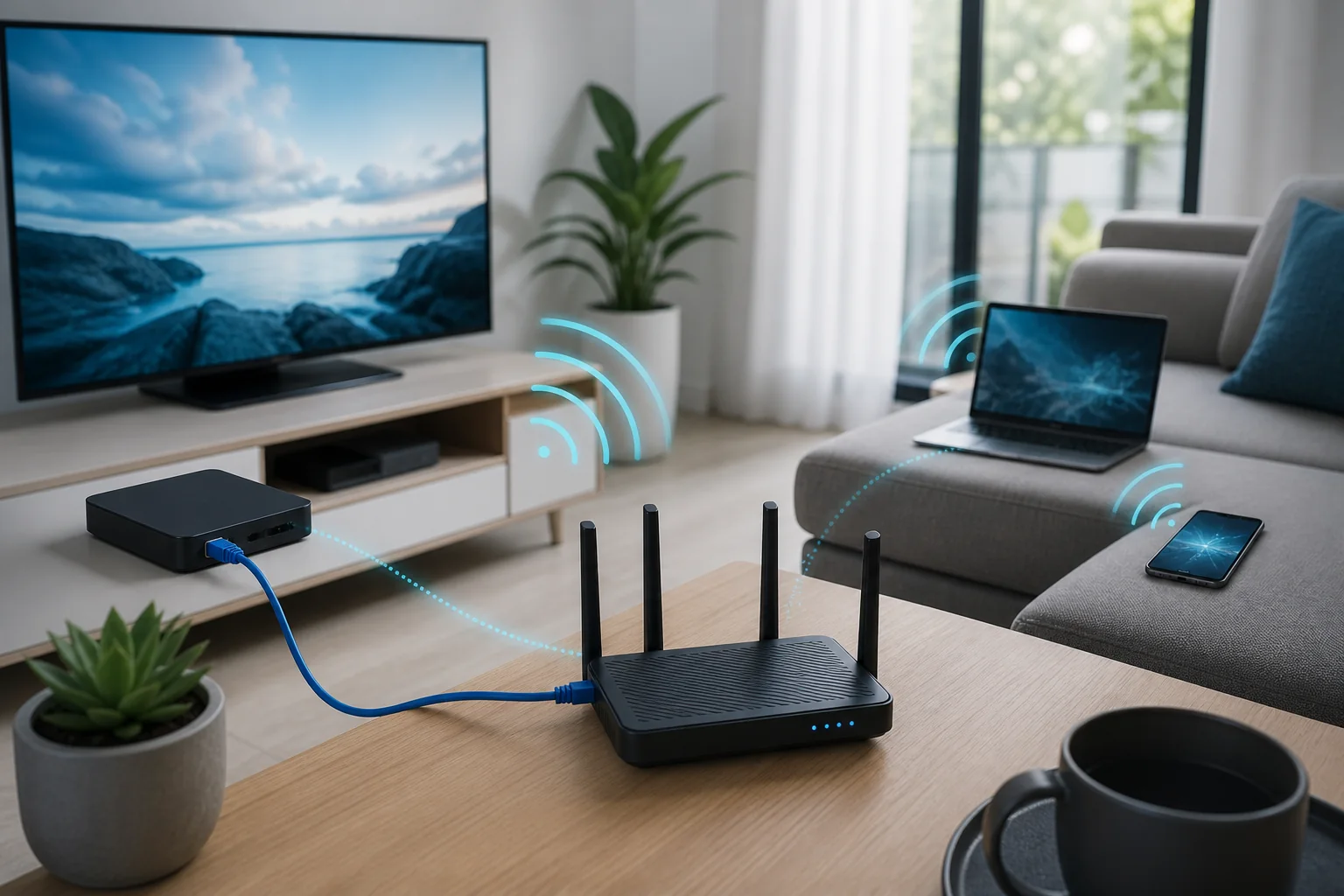
4. Improve Wi-Fi Signal and Router Placement
Place the router in an open, central and elevated location when possible. Walls, floors, metal objects and distance can weaken the signal. Moving the streaming device or router by a small amount can sometimes produce a measurable improvement.
Use 5 GHz or 6 GHz when the device is reasonably close to the router and supports the band. Use 2.4 GHz when additional range is more important than maximum speed. Test both rather than assuming one band will always perform better.
5. Stop Downloads and Reduce Competing Traffic
Cloud backups, game downloads, video calls and other streams can compete for available bandwidth. Pause heavy activity temporarily and retest. If playback improves, schedule large downloads for another time or use router quality-of-service settings when you understand how they work.
6. Clear the IPTV Player Cache
A large or corrupted cache can make some players slow or unstable. Use the device’s application settings to clear cache only. Clearing application data may remove saved login details and preferences, so record required information before taking that additional step.
7. Update the IPTV App and Device Software
Install player updates from the official app store or developer source. Also check for system updates on the television, Fire TV, Android device, Apple device or computer. Updates can correct playback, networking and codec problems.
See our IPTV apps guide and compatible IPTV devices guide for platform-specific information.
8. Lower Video Quality as a Diagnostic Test
If the player provides a legitimate quality option, temporarily compare a lower resolution. Stable playback at a lower quality can indicate limited available bandwidth, unstable Wi-Fi or device decoding limitations. It does not automatically prove that the internet plan is the only cause.
9. Test Another Compatible Player or Device
Test the same authorized account on another compatible device or player when permitted. If the problem occurs only in one application, review that player’s settings or reinstall it from an official source. If it occurs only on one device, available memory, storage, heat or hardware limits may be involved.
10. Check Whether One Channel or Every Channel Is Affected
When one channel buffers but several others play normally, repeatedly changing the router or device is unlikely to help. Record the affected channel, time and device, then contact the service’s support team. When every channel and other streaming applications are slow, focus first on the home network and internet connection.
11. Be Careful With DNS and VPN Advice
Changing DNS can affect how a domain is resolved, but it usually does not increase the sustained bandwidth of a stream that is already playing. A VPN can add distance, encryption overhead and another network path, which may reduce performance. Treat both as controlled tests, not universal buffering fixes.
12. Contact the Appropriate Support Team
Contact the IPTV service when specific streams or account access are affected. Contact the internet provider when speed and reliability are poor across several applications and devices, especially when wired tests are also below expectations.
Canadian network context: The CRTC explains that router placement, connected-device count, equipment, congestion and outside network conditions can affect internet performance. See the CRTC internet performance and reliability guide. Microsoft also provides practical guidance about Wi-Fi signal, router placement and home layout.
IPTV Buffering Fix Canada: Frequently Asked Questions
Why does IPTV buffer even with fast internet?
Advertised speed is only one factor. Weak Wi-Fi, congestion, latency, packet loss, device limitations, application problems or a specific source can still interrupt playback.
Is Ethernet better than Wi-Fi for IPTV?
Ethernet is usually more consistent because it avoids wireless interference and signal loss. It is also one of the best tests for identifying whether Wi-Fi is the problem.
Should I clear cache or application data?
Start by clearing cache. Clearing application data can remove saved login information and preferences, so use it only when necessary and after recording required details.
Will changing DNS stop IPTV buffering?
Not usually when the stream already loads. DNS affects name resolution, while continuous buffering is more often connected to bandwidth, stability, the device, application or source.
What should I report to support?
Provide the affected channel or category, approximate time, device, player, connection type and whether other channels or applications worked normally.
THE BOTTOM LINE
Fix the Cause, Not Just the Symptom
A reliable IPTV buffering fix Canada workflow uses Ethernet and comparison tests to separate Wi-Fi, device, application and source problems. Change one setting at a time and keep notes so you can identify what genuinely improves playback.